Picture this: you’ve got your favorite movie queued up on your iPhone, ready to enjoy a cinematic experience on the big screen. You grab the popcorn, hit that “connect” button, and… nothing. It’s like your iPhone is playing hard to get. Frustrating, right?
Don’t worry, you’re not alone in this digital drama. Many find themselves stuck in the perplexing world of connectivity issues, wondering why their iPhone won’t cooperate with their TV. Whether it’s a stubborn Bluetooth connection or a rogue HDMI cable, the reasons can be as varied as the number of streaming services available today.
Common Connection Issues
Connectivity problems between an iPhone and a TV frequently stem from common issues. Understanding these challenges can help users troubleshoot effectively.
Wi-Fi Network Problems
Wi-Fi network problems commonly disrupt streaming. Users might face slow internet speeds or intermittent connections. A congested network can result from multiple devices accessing Wi-Fi simultaneously. Ensuring the iPhone and TV are on the same Wi-Fi network often resolves connection issues. Restarting the router also enhances performance, improving connectivity reliability.
Bluetooth Connectivity Issues
Bluetooth connectivity issues may prevent successful connections. Devices sometimes experience compatibility problems, especially with older TVs. Ensuring Bluetooth is enabled on both the iPhone and TV is essential. Additionally, maintaining a close proximity between devices can enhance performance. Resetting Bluetooth settings on the iPhone may streamline connections by eliminating any prior pairing issues.
Checking Compatibility
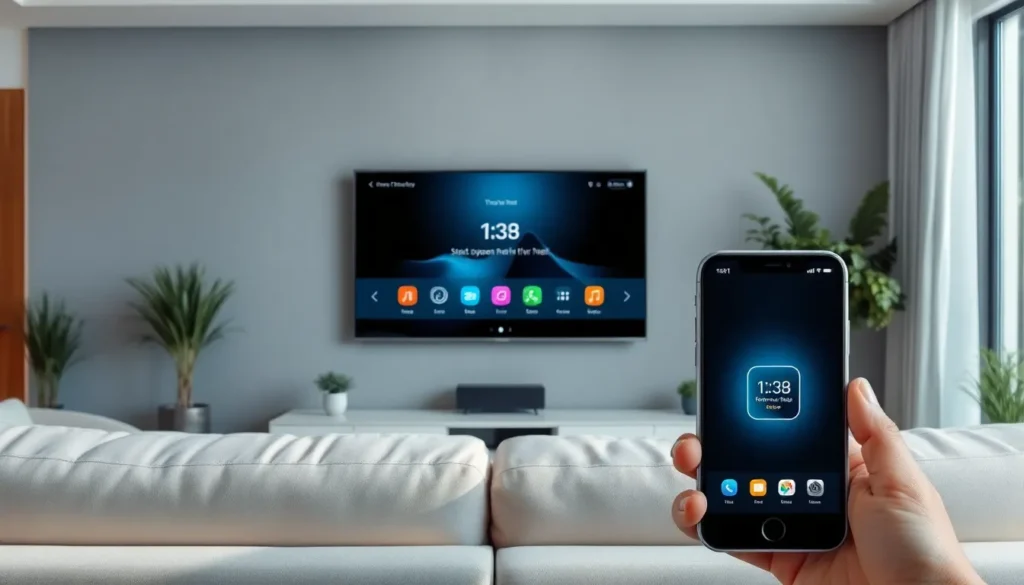
Compatibility between an iPhone and a TV significantly impacts the ability to connect. Ensuring both devices support the necessary technology is crucial.
Supported iPhone Models
Recent iPhone models generally support screen mirroring and streaming features. Models such as the iPhone 8 and later, including the iPhone SE (2nd generation) and newer versions, allow for seamless connectivity. Older models like the iPhone 7 or iPhone 6 may experience limitations due to outdated software or hardware. Confirming that the device runs the latest version of iOS enhances connectivity options. Updated software often introduces improved compatibility, facilitating a better user experience when connecting to a TV.
Supported TV Models
Modern TVs typically support various connectivity options, including Apple AirPlay and HDMI. Smart TVs from brands like Samsung, LG, and Sony generally work well with iPhones. Older models might lack advanced features such as AirPlay, which can restrict streaming capabilities. Checking the TV’s specifications determines whether it accommodates screen mirroring and streaming from iPhones. Additionally, ensuring that the TV’s firmware is up to date can rectify potential compatibility issues, improving connectivity with Apple devices.
Troubleshooting Steps
Improving the connection between an iPhone and a TV often requires straightforward troubleshooting steps. Users can follow these actions to resolve common connectivity issues.
Restarting Devices
Restarting both the iPhone and the TV can solve many connectivity problems. Performing a simple reboot clears temporary glitches. She can restart the iPhone by pressing and holding the side button until the slider appears, then sliding it to power off. Turning the TV off and on again resets its state as well. After rebooting both devices, attempting the connection again might yield better results. Maintaining a clear path for signal transmission enhances performance. Disconnecting other devices from the Wi-Fi network can also reduce interference.
Updating Software
Ensuring the latest software version on the iPhone and TV significantly improves connectivity. Outdated software can lead to compatibility issues. To check for updates on the iPhone, navigate to Settings, select General, then tap Software Update. For a TV, access the settings menu and locate the update option, which varies by brand. He should prioritize installing any available updates. Regularly updating both devices optimizes functionality and enhances the overall experience. Compatibility between the latest software versions often facilitates smoother connections.
Using Alternatives
Finding alternatives for connecting an iPhone to a TV can solve persistent connectivity issues. These methods offer reliable options when standard connections fail.
HDMI Adapter
Using an HDMI adapter enables a direct connection between an iPhone and a TV. This adapter connects to the iPhone’s Lightning port, providing a seamless route for video and audio output. Users enjoy full-quality streaming without the need for Wi-Fi, making it a dependable choice. Ensure the HDMI cable remains firmly connected to both devices for optimal performance. This method supports all iPhone models, especially those from the iPhone 8 and later. Checking compatibility and firmware updates on the TV enhances the overall experience.
Wireless Streaming Devices
Wireless streaming devices offer a convenient alternative for connecting an iPhone to a TV. Google Chromecast, Amazon Fire Stick, and Apple TV allow users to cast content seamlessly. These devices often require the iPhone and TV to be connected to the same network. This ensures a smooth mirroring and streaming process. Users can control playback directly from the iPhone, providing a flexible viewing experience. Investing in a high-quality streaming device often enhances streaming quality and reduces lag, improving user satisfaction significantly.
Experiencing connectivity issues between an iPhone and a TV can be frustrating. By understanding the common challenges and troubleshooting steps outlined in this article, users can often resolve these problems effectively. Whether it’s ensuring both devices are updated or exploring alternative connection methods like HDMI adapters or streaming devices, there are solutions available. Staying informed about compatibility and network settings can significantly enhance the viewing experience. With the right approach, users can enjoy seamless streaming and screen mirroring from their iPhones to their TVs.